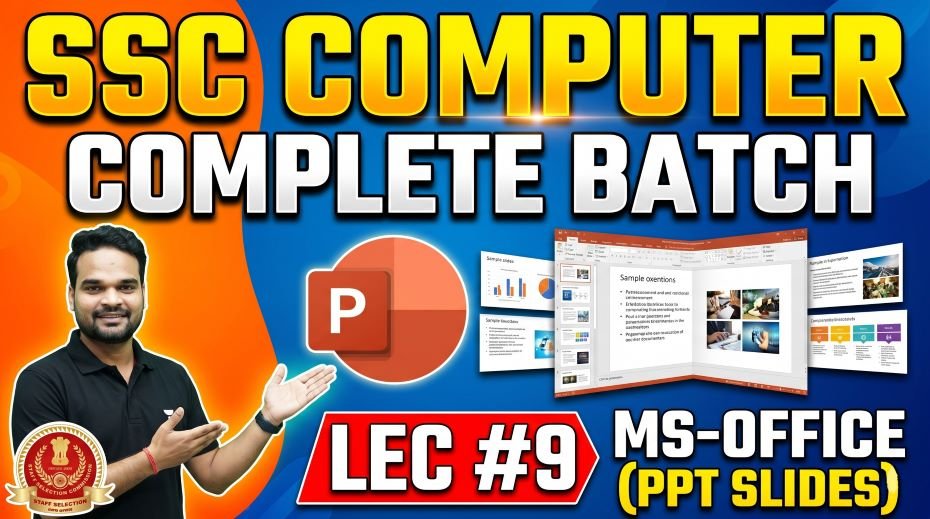
In this we will share SSC Computer Complete Batch MS-Office PPT Slides (LEC #9) so, of all the topics in the SSC (Staff Selection Commission) Computer Awareness syllabus, MS-Office is the one that combines theoretical knowledge with real-world practical relevance in the most direct way. Every government office in India runs on Microsoft Office. Every SSC aspirant who clears the exam will use MS Word, MS Excel, or MS PowerPoint on their very first day of work. This makes it both an examination topic and a career skill simultaneously.
Lecture 9 of the Complete Foundation Batch for All SSC Exams PPT Series is dedicated entirely to MS-Office (एमएस-ऑफिस). With 136 detailed PPT slides covering all classes on the Microsoft Office suite, this module is one of the most immediately useful and directly exam-relevant chapters in the entire series.
Whether you are searching for MS Office notes for SSC, MS Word shortcuts for competitive exams, MS Excel functions list, MS PowerPoint notes, MS Office file extensions, MS Office keyboard shortcuts for SSC CGL, or a free MS Office notes PDF, this article covers everything you need in a structured, table-rich, exam-focused format. Let us get started.
| Detail | Information |
| Subject | MS-Office (एमएस-ऑफिस) |
| Lecture Number | LEC 9 |
| Total Slides | 136 PPT Slides |
| File Size | 56 MB |
| Series Name | Complete Foundation Batch for All SSC Exams (PPT Series) |
| Serial Number | #09 |
| Best For | SSC CGL, CHSL, MTS, GD, CPO, CHSL DEO, Steno and all competitive exams |
| Language | English + Hindi (Bilingual) |
| Format | PPT / PDF |
| Website | https://slideshareppt.net/ |
SSC Computer Complete Batch MS-Office PPT Slides (LEC #9)
NOTE: IF YOU WANT TO DOWNLOAD COMPLETE SERIES – JUST VISIT THIS REDIRECT PAGE
MS-Office Kya Hai? What Is Microsoft Office?
Microsoft Office (commonly called MS-Office) is a suite of productivity software applications developed by Microsoft Corporation. It is the world’s most widely used office productivity software and is used in virtually every corporate office, government department, educational institution, and business establishment across the globe.
MS-Office was first launched in 1989 for Apple Macintosh and in 1990 for Windows. Since then it has gone through many versions and is now available both as a traditional licensed software (MS Office 2019, 2021) and as a cloud-based subscription service called Microsoft 365 (formerly Office 365).
In Hindi, MS-Office is called एमएस-ऑफिस or Microsoft Karyalay Sahayak Upkaran (माइक्रोसॉफ्ट कार्यालय सहायक उपकरण). The English term is universally used in SSC exams.
| Aspect | Detail |
| Full Name | Microsoft Office |
| Developed By | Microsoft Corporation (USA) |
| Founder of Microsoft | Bill Gates and Paul Allen (founded 1975) |
| First Released | 1989 (for Mac), 1990 (for Windows) |
| Current Versions | Microsoft Office 2021 (perpetual license), Microsoft 365 (subscription/cloud) |
| Primary Use | Office productivity: word processing, spreadsheets, presentations, database, email |
| Operating Systems | Windows (primary), macOS, Android, iOS, Web (Microsoft 365 online) |
| File Formats | DOCX (Word), XLSX (Excel), PPTX (PowerPoint), ACCDB (Access), PST (Outlook) |
| Free Alternative | LibreOffice (open-source), Google Workspace (cloud-based, free) |
| Used In SSC Context | For Data Entry Operator (DEO) skill tests, Stenographer computer tests, and Computer Awareness questions |
MS-Office Applications: Complete Overview Table
The Microsoft Office suite consists of several applications, each designed for a specific type of productivity task. Here is a complete reference of all major MS-Office applications:
| Application | Primary Purpose | Default File Extension | Old Extension | Key Features |
| MS Word | Word processing; creating and editing text documents | .docx | .doc | Spell check, mail merge, track changes, tables, headers/footers, page numbers |
| MS Excel | Spreadsheet; data calculation, analysis, and visualization | .xlsx | .xls | Formulas, functions, pivot tables, charts/graphs, data sorting and filtering, conditional formatting |
| MS PowerPoint | Presentation slides for visual communication | .pptx | .ppt | Slide layouts, animations, transitions, design themes, presenter view, slide show |
| MS Access | Database management for storing and querying structured data | .accdb | .mdb | Tables, queries, forms, reports, relationships between data tables |
| MS Outlook | Email client, calendar, and personal information manager | .pst (data file) | .pst | Email management, calendar scheduling, contacts, task management, reminders |
| MS OneNote | Digital note-taking and organization | .one | – | Notebooks, sections, pages; supports text, images, audio, and video notes |
| MS Publisher | Desktop publishing for creating layouts and designs | .pub | – | Brochures, flyers, newsletters, business cards, greeting cards |
| MS Teams | Collaboration, chat, video calls, and file sharing | Cloud-based | – | Video meetings, team channels, file collaboration, integration with other Office apps |
| MS Visio | Diagramming and vector graphics (not in all editions) | .vsdx | .vsd | Flowcharts, network diagrams, org charts, floor plans |
| MS Project | Project management and scheduling | .mpp | – | Gantt charts, resource management, project timelines, task dependencies |
MS Word: Complete Notes for SSC Computer Awareness
MS Word (Microsoft Word) is the world’s most widely used word processing software. It is used to create, edit, format, and print text-based documents. MS Word is tested heavily in SSC CGL, CHSL DEO, Stenographer, and other competitive exams. You must know its features, shortcuts, and functions in detail.
MS Word: Key Features and Functions
| Feature / Function | Description | SSC Exam Relevance |
| Word Wrap | Text automatically moves to the next line when it reaches the margin; no need to press Enter | Basic Word behavior; tested in definition-type questions |
| Spell Check | Automatic checking of spelling errors; red wavy underline shows spelling mistakes | Auto spelling = red underline; grammar = green/blue underline |
| Grammar Check | Automatically identifies grammatical errors; shown with green or blue wavy underline | Distinguishes from spell check (red underline) |
| AutoCorrect | Automatically corrects common typing mistakes and typos as you type | Configured in File > Options > Proofing > AutoCorrect Options |
| Find and Replace | Search for a specific word/phrase and replace it with another (Ctrl+H) | Ctrl+H is the most tested Word shortcut for this function |
| Mail Merge | Creates personalized documents (letters, labels) for multiple recipients using a data source | Used in letters to many recipients; data source can be Excel or Access |
| Track Changes | Records edits made to a document so reviewers can accept or reject them | Used in collaborative document editing |
| Page Break | Forces text to start on a new page (Ctrl+Enter) | Ctrl+Enter = Page Break; tested frequently |
| Section Break | Divides document into sections with different formatting | Allows different headers, footers, or orientations in one document |
| Headers and Footers | Repeated content at top (header) or bottom (footer) of every page | Page numbers, document title typically go here |
| Table of Contents | Automatically generated list of document headings with page numbers | Based on Heading styles; Insert > Table of Contents |
| Watermark | Faint text or image behind the main content of a document | Design > Watermark; common examples: CONFIDENTIAL, DRAFT |
| Word Count | Counts total words, characters, paragraphs in document | Review > Word Count; also shown in status bar at bottom |
MS Word: Most Important Keyboard Shortcuts for SSC
| Shortcut Key | Action / Function |
| Ctrl + N | Create a New blank document |
| Ctrl + O | Open an existing document |
| Ctrl + S | Save the current document |
| Ctrl + W | Close the current document |
| Ctrl + P | Print the document |
| Ctrl + Z | Undo the last action |
| Ctrl + Y | Redo the last undone action |
| Ctrl + X | Cut selected text or object |
| Ctrl + C | Copy selected text or object |
| Ctrl + V | Paste cut or copied content |
| Ctrl + A | Select All content in the document |
| Ctrl + B | Bold the selected text |
| Ctrl + I | Italicize the selected text |
| Ctrl + U | Underline the selected text |
| Ctrl + E | Center align the selected paragraph |
| Ctrl + L | Left align the selected paragraph |
| Ctrl + R | Right align the selected paragraph |
| Ctrl + J | Justify align the selected paragraph |
| Ctrl + F | Find text in the document |
| Ctrl + H | Find and Replace text in the document |
| Ctrl + G | Go To a specific page, line, or bookmark |
| Ctrl + K | Insert a Hyperlink |
| Ctrl + Enter | Insert a Page Break |
| Ctrl + Home | Move cursor to the beginning of the document |
| Ctrl + End | Move cursor to the end of the document |
| F7 | Open Spelling and Grammar check dialog |
| F12 | Save As (opens Save As dialog) |
| Ctrl + D | Open Font dialog box |
| Ctrl + T | Create a Hanging Indent |
| Ctrl + M | Indent paragraph from the left |
MS Word: Views and Display Modes
| View Mode | Description | When to Use |
| Print Layout (Default) | Shows document exactly as it will appear when printed; shows margins, headers, footers | Default view for most editing tasks; most common |
| Read Mode | Full-screen reading view; removes editing tools for comfortable reading | When reading long documents; no editing intended |
| Web Layout | Shows how document would appear as a web page; no page breaks visible | When creating content for web publication |
| Outline View | Shows document structure based on heading levels; easy to reorganize | When planning or restructuring long documents |
| Draft View | Shows only text without images, headers, footers, and page boundaries; fastest editing | Quick text editing; useful on slow computers |
MS Excel: Complete Notes for SSC Computer Awareness
MS Excel (Microsoft Excel) is the world’s most powerful and widely used spreadsheet software. It organizes data in rows and columns (cells), and allows complex calculations, data analysis, and visualization through charts and graphs. MS Excel questions appear in almost every SSC Computer Awareness paper.
MS Excel: Basic Terminology
| Term | Definition | Example |
| Workbook | The entire Excel file; contains one or more worksheets | Sales_Report.xlsx is a workbook |
| Worksheet (Sheet) | A single spreadsheet within a workbook; organized in rows and columns | Sheet1, Sheet2, Sheet3 (tabs at bottom) |
| Cell | The intersection of a row and a column; the basic unit where data is entered | Cell A1 is at column A, row 1 |
| Cell Address / Cell Reference | The unique identifier of a cell using column letter + row number | A1, B5, C10, Z100 |
| Row | Horizontal series of cells; numbered 1, 2, 3… (up to 1,048,576 rows in Excel 2019+) | Row 1 contains: A1, B1, C1, D1… |
| Column | Vertical series of cells; labeled A, B, C… Z, AA, AB… (up to 16,384 columns) | Column A contains: A1, A2, A3, A4… |
| Range | A group of adjacent cells selected together | A1:D10 selects cells from A1 to D10 |
| Formula | An expression that performs calculations; always starts with = sign | =A1+B1, =SUM(A1:A10), =AVERAGE(B1:B5) |
| Function | A predefined formula built into Excel for common calculations | SUM, AVERAGE, MAX, MIN, COUNT, IF, VLOOKUP |
| Active Cell | The currently selected cell where data will be entered | Shown with a green border; cell address shown in Name Box |
| Name Box | The box on the left of the formula bar showing the current cell address | Shows ‘A1’ when cell A1 is selected |
| Formula Bar | The bar above the spreadsheet showing the content of the active cell | Shows formula or value of selected cell |
MS Excel: Most Important Functions for SSC Exams
| Function | Syntax | What It Does | Example |
| SUM | =SUM(range) | Adds all numbers in a range | =SUM(A1:A10) adds values in cells A1 through A10 |
| AVERAGE | =AVERAGE(range) | Calculates the arithmetic mean of a range | =AVERAGE(B1:B5) gives average of B1 to B5 |
| MAX | =MAX(range) | Returns the largest (maximum) value in a range | =MAX(C1:C20) gives the highest number |
| MIN | =MIN(range) | Returns the smallest (minimum) value in a range | =MIN(C1:C20) gives the lowest number |
| COUNT | =COUNT(range) | Counts cells containing numeric values | =COUNT(A1:A10) counts how many cells have numbers |
| COUNTA | =COUNTA(range) | Counts cells that are NOT empty (any content) | =COUNTA(A1:A10) counts non-empty cells |
| COUNTIF | =COUNTIF(range, criteria) | Counts cells meeting a specific condition | =COUNTIF(A1:A10,”>50″) counts cells greater than 50 |
| IF | =IF(condition, value_if_true, value_if_false) | Returns different values based on a condition | =IF(A1>50,”Pass”,”Fail”) shows Pass or Fail |
| VLOOKUP | =VLOOKUP(lookup_value, table_array, col_index, [range_lookup]) | Searches the first column of a table and returns a value from another column | =VLOOKUP(“Raj”,A1:C10,3,FALSE) finds Raj and returns value from column 3 |
| HLOOKUP | =HLOOKUP(lookup_value, table_array, row_index, [range_lookup]) | Like VLOOKUP but searches horizontally across the first row | Used for horizontally arranged data tables |
| CONCATENATE / CONCAT | =CONCATENATE(text1, text2,…) or =CONCAT(text1,text2) | Joins two or more text strings together | =CONCATENATE(A1,” “,B1) joins first and last name |
| LEFT | =LEFT(text, num_chars) | Extracts specified number of characters from the left of a text string | =LEFT(“SSC2026”,3) returns “SSC” |
| RIGHT | =RIGHT(text, num_chars) | Extracts specified number of characters from the right of a text string | =RIGHT(“SSC2026”,4) returns “2026” |
| LEN | =LEN(text) | Returns the total number of characters in a text string | =LEN(“Hello”) returns 5 |
| NOW | =NOW() | Returns the current date and time | Shows current system date and time; updates when file recalculates |
| TODAY | =TODAY() | Returns the current date only | Shows today’s date; useful for age and deadline calculations |
MS Excel: Important Keyboard Shortcuts
| Shortcut | Action |
| Ctrl + N | New workbook |
| Ctrl + O | Open workbook |
| Ctrl + S | Save workbook |
| Ctrl + W | Close workbook |
| Ctrl + P | |
| Ctrl + Z | Undo |
| Ctrl + Y | Redo |
| Ctrl + C | Copy |
| Ctrl + X | Cut |
| Ctrl + V | Paste |
| Ctrl + F | Find |
| Ctrl + H | Find and Replace |
| Ctrl + Home | Go to cell A1 (beginning of sheet) |
| Ctrl + End | Go to last used cell |
| Ctrl + Arrow Key | Jump to last/first cell with data in that direction |
| F2 | Edit the active cell (enter edit mode) |
| F4 | Repeat last action / toggle absolute cell reference ($) |
| F11 | Create a chart from selected data in a new sheet |
| Alt + Enter | Start a new line within the same cell |
| Ctrl + Shift + L | Toggle AutoFilter on/off for a range |
| Ctrl + T | Create a Table from selected data |
| Ctrl + ; | Insert today’s date in the current cell |
| Delete | Clear cell content (does not delete the cell itself) |
MS Excel: Chart Types Reference
| Chart Type | Best Used For | Example Use Case |
| Column Chart | Comparing values across categories; showing changes over time | Comparing monthly sales figures across regions |
| Bar Chart | Like column but horizontal; better for long category names | Comparing product names with long text labels |
| Line Chart | Showing trends and changes over time; continuous data | Tracking temperature changes over weeks/months |
| Pie Chart | Showing proportions of a whole; percentage breakdowns | Showing market share percentages of companies |
| Area Chart | Like line chart but area below is filled; emphasizes volume | Showing cumulative revenue growth over years |
| Scatter (XY) Plot | Showing relationship between two numerical variables | Correlation between hours studied and marks scored |
| Pivot Chart | Summarizing and analyzing large datasets visually | Sales analysis by region, product, and time period |
MS PowerPoint: Complete Notes for SSC Computer Awareness
MS PowerPoint (Microsoft PowerPoint) is the world’s most widely used presentation software. It creates visual slideshows comprising text, images, charts, animations, and multimedia content for use in presentations, lectures, business meetings, and training sessions.
MS PowerPoint: Key Terms and Concepts
| Term | Definition | SSC Exam Point |
| Presentation | The complete PowerPoint file containing all slides | File extension .pptx (new) or .ppt (old) |
| Slide | A single page within a PowerPoint presentation | Like a page in a document; can contain text, images, charts, videos |
| Slide Layout | Predefined arrangement of placeholders on a slide | Options: Title Slide, Title and Content, Blank, Two Content, etc. |
| Placeholder | Designated area on a slide for specific content (text, image, chart) | Click placeholder to add content; part of slide layout |
| Slide Master | Master slide that controls the overall design and formatting of all slides | Changes to Slide Master affect all slides; accessed via View > Slide Master |
| Theme | A set of coordinated colors, fonts, and effects applied to the presentation | Applied from the Design tab; changes overall visual appearance |
| Template | A pre-designed presentation framework with layouts and themes | File extension .potx; used as starting point for new presentations |
| Animation | Motion effects applied to individual objects on a slide | Makes text or images enter, exit, or move on the slide |
| Transition | Effect that occurs when moving from one slide to the next | Examples: Fade, Push, Wipe, Morph; applied in Transitions tab |
| Slide Show | Full-screen presentation mode for displaying slides to an audience | F5 = Start from beginning; Shift+F5 = Start from current slide |
| Notes Pane | Area below the slide where presenter notes are typed | Speaker notes visible to presenter but not the audience |
| Handout | Printed version of slides for distribution to audience | Multiple slides printed per page for reference |
| Slide Sorter View | View showing all slides as thumbnails for easy rearranging | Drag and drop to reorder slides; accessed via View tab |
MS PowerPoint: Important Keyboard Shortcuts
| Shortcut | Action |
| F5 | Start Slide Show from the beginning (Slide 1) |
| Shift + F5 | Start Slide Show from the current slide |
| Esc | End Slide Show and return to editing view |
| Ctrl + N | New presentation |
| Ctrl + M | Insert a new slide |
| Ctrl + D | Duplicate the selected slide |
| Ctrl + Enter | Move to the next text placeholder on the slide |
| Ctrl + Shift + G | Group selected objects |
| Ctrl + Shift + H | Ungroup selected objects |
| B | During slide show: Black screen (press again to resume) |
| W | During slide show: White screen (press again to resume) |
| Page Down / Right Arrow | Next slide during presentation |
| Page Up / Left Arrow | Previous slide during presentation |
| Ctrl + P | Change cursor to Pen tool during slide show |
| Tab | During editing: Move to next object on the slide |
MS PowerPoint: Animation vs Transition – Key Difference
| Feature | Animation | Transition |
| Definition | Effect applied to an individual object (text box, image, shape) on a slide | Effect applied to the entire slide when moving from one slide to the next |
| Where Applied | To selected object on a slide | To the slide itself |
| Tab Location | Animations tab in ribbon | Transitions tab in ribbon |
| Example Effects | Fly In, Fade, Bounce, Spin, Zoom, Wipe | Fade, Push, Wipe, Split, Morph, Dissolve |
| Purpose | Makes content appear or move in a specific way during the slide show | Creates a smooth visual flow between slides |
| Timing Control | Set delay and duration for each object’s animation | Set duration and whether to advance on click or automatically |
MS Access: Database Management Notes for SSC
MS Access (Microsoft Access) is a database management system (DBMS) included in MS-Office. It is used to create, store, organize, and retrieve structured data in a relational database format. While it is not as deeply tested as Word, Excel, and PowerPoint, you should know its basic terminology:
| MS Access Term | Definition | Example |
| Table | The primary storage structure; organizes data in rows (records) and columns (fields) | A ‘Students’ table with fields: Name, RollNo, Marks, Grade |
| Record | A single row in a table; represents one complete entry | One student’s complete data: Raj Kumar, 101, 85, A |
| Field | A single column in a table; represents one attribute of data | The ‘Marks’ column is a field |
| Primary Key | A field (or combination) that uniquely identifies each record in a table | RollNo (no two students have the same roll number) |
| Query | A request to retrieve, update, delete, or insert specific data from tables | Find all students who scored more than 80 marks |
| Form | A user-friendly interface for entering and viewing data in a table | A data entry form for adding new student records |
| Report | A formatted printable output of data from tables or queries | A report showing class results sorted by rank |
| Relationship | A link between two tables based on a shared field (Primary Key – Foreign Key) | Linking Students table and Marks table via RollNo |
MS Outlook: Email and Calendar Notes for SSC
MS Outlook is Microsoft’s email client and personal information manager included in MS-Office. It manages emails, calendar events, contacts, and tasks. For SSC aspirants, the most important Outlook concepts overlap with the email chapter (LEC 8) and include:
| Outlook Feature | Description | SSC Exam Point |
| Inbox | Default folder for received emails | Primary email landing folder |
| Sent Items | Stores copies of all sent emails | Automatically saved when email is sent |
| Drafts | Emails saved but not yet sent | Auto-saved while composing |
| Calendar | Schedule meetings, appointments, and events | Can send meeting invites to others |
| Contacts | Stores names, email addresses, and other contact details | Address book for email recipients |
| Tasks | To-do list with due dates and priority levels | Personal task management |
| Rules | Automated actions for incoming emails based on conditions | Automatically move/flag/delete emails matching criteria |
| PST File | Personal Storage Table; offline file storing all Outlook data | File extension: .pst; important for SSC file extension questions |
| OST File | Offline Storage Table; cached copy for offline access | File extension: .ost; used when Exchange Server connection is unavailable |
MS-Office File Extensions: Most Tested Table in SSC Exams
File extensions in MS-Office are one of the most directly and consistently tested topics in SSC Computer Awareness. Questions like ‘what is the file extension of MS Word?’ or ‘which extension does MS PowerPoint use?’ appear in virtually every exam. Memorize this table completely:
| Application | New Extension (2007+) | Old Extension (Before 2007) | Template Extension | Macro-Enabled Extension |
| MS Word | .docx | .doc | .dotx (template) | .docm (macro-enabled) |
| MS Excel | .xlsx | .xls | .xltx (template) | .xlsm (macro-enabled) |
| MS PowerPoint | .pptx | .ppt | .potx (template) | .pptm (macro-enabled) |
| MS Access | .accdb | .mdb | .accdt (template) | – |
| MS Outlook (data) | .pst | – | – | .ost (offline) |
| MS OneNote | .one | – | – | – |
| MS Publisher | .pub | – | – | – |
| MS Visio | .vsdx | .vsd | – | – |
| MS Project | .mpp | – | – | – |
Key Rule: The letter ‘x’ at the end of new extensions (.docx, .xlsx, .pptx) stands for XML – all new Office formats are XML-based. Older formats (.doc, .xls, .ppt) are binary formats.
Microsoft Office Versions: History and Key Facts
SSC exams occasionally ask about MS-Office version history. Here is a concise but comprehensive timeline:
| Version | Year Released | Key New Features |
| MS Office 1.0 | 1989 (Mac) / 1990 (Windows) | First release; bundled Word, Excel, PowerPoint together as a suite |
| MS Office 97 | 1997 | Introduced Office Assistant (Clippy); command bar toolbars; .doc/.xls/.ppt formats |
| MS Office 2000 | 1999 | Improved web integration; personalized menus |
| MS Office XP / 2002 | 2001 | Smart Tags; task panes; crash recovery features |
| MS Office 2003 | 2003 | XML support; Information Rights Management; improved SharePoint integration |
| MS Office 2007 | 2007 | Major overhaul: Ribbon UI replaced menus and toolbars; introduced .docx, .xlsx, .pptx XML formats |
| MS Office 2010 | 2010 | Backstage view (File menu); improved collaboration; video embedding |
| MS Office 2013 | 2013 | Cloud integration with OneDrive; touch support; flat modern design |
| MS Office 2016 | 2015 | Real-time co-authoring; Tell Me search bar; improved chart types |
| MS Office 2019 | 2018 | Improved inking; new Excel functions (IFS, TEXTJOIN); Morph transition in PowerPoint |
| MS Office 2021 | 2021 | New Excel functions (XLOOKUP, LET); improved Teams integration; dark mode |
| Microsoft 365 | 2020 (renamed) | Cloud-based subscription; always updated; formerly called Office 365; includes Teams, OneDrive 1TB |
The Ribbon is the strip of commands at the top of every MS-Office application window. It was introduced in MS Office 2007 and replaced the older menu bar and toolbar system. Understanding the Ribbon is important for practical computer tests and skill-based SSC exams:
| Ribbon Element | Description |
| Tab | Major category of commands; e.g., Home, Insert, Page Layout, View (Word); Home, Insert, Formulas, Data (Excel) |
| Group | A cluster of related commands within a tab; e.g., the ‘Font’ group contains bold, italic, font size, color |
| Command Button | An individual button within a group that performs a specific action |
| Dialog Box Launcher | A small arrow icon at the bottom-right of some groups; opens a full dialog for more options |
| Quick Access Toolbar (QAT) | Small toolbar above or below the Ribbon with frequently used commands; customizable by user |
| File / Backstage View | The File tab opens Backstage View with file-level commands: New, Open, Save, Print, Share, Info |
| Tell Me / Search | Search box (Ctrl+Q in newer versions) for finding any command quickly by typing its name |
| Minimize Ribbon | Double-click a tab or press Ctrl+F1 to minimize/expand the Ribbon to save screen space |
MS-Office vs LibreOffice vs Google Workspace: Key Comparison
SSC Computer Awareness sometimes asks about alternatives to MS-Office. Here is a comparison of the most important office suites:
| Feature | MS-Office | LibreOffice | Google Workspace (Docs/Sheets/Slides) |
| Type | Proprietary commercial software | Free and open-source software | Cloud-based free/subscription service |
| Cost | Paid (license or Microsoft 365 subscription) | Completely free to download and use | Free (basic); Google Workspace Business is paid |
| Developer | Microsoft Corporation (USA) | The Document Foundation (non-profit) | Google (Alphabet Inc., USA) |
| Word Processor | MS Word (.docx) | Writer (.odt) | Google Docs (.gdoc, exports .docx) |
| Spreadsheet | MS Excel (.xlsx) | Calc (.ods) | Google Sheets (.gsheet, exports .xlsx) |
| Presentation | MS PowerPoint (.pptx) | Impress (.odp) | Google Slides (.gslide, exports .pptx) |
| Database | MS Access (.accdb) | Base (.odb) | No direct equivalent |
| Works Offline | Yes (fully) | Yes (fully) | Limited (with Chrome offline mode) |
| Collaboration | Via OneDrive/SharePoint | Limited real-time collaboration | Excellent real-time collaboration |
| Platform | Windows, macOS, mobile | Windows, macOS, Linux, Android | Browser-based; all platforms; Android/iOS apps |
MS-Office Abbreviations and Terms: Reference for SSC
| Abbreviation / Term | Full Form / Meaning | Context |
| MS-Office | Microsoft Office | Suite of productivity applications by Microsoft |
| DOCX | .docx = Document XML | MS Word file format (2007+) |
| XLSX | .xlsx = Excel XML Spreadsheet | MS Excel file format (2007+) |
| PPTX | .pptx = PowerPoint XML Presentation | MS PowerPoint file format (2007+) |
| ACCDB | .accdb = Access Database | MS Access file format (2007+) |
| PST | .pst = Personal Storage Table | MS Outlook data file |
| QAT | Quick Access Toolbar | Customizable shortcut toolbar above/below Ribbon |
| VLOOKUP | Vertical Lookup | Excel function to search vertically in a table |
| HLOOKUP | Horizontal Lookup | Excel function to search horizontally in a table |
| SUM | Summation Function | Excel function to add a range of cells |
| IF | Conditional Function | Excel function returning value based on condition |
| DDE | Dynamic Data Exchange | Old technology for linking data between Office apps |
| OLE | Object Linking and Embedding | Technology for embedding objects between Office apps |
| XML | Extensible Markup Language | Format used in .docx, .xlsx, .pptx file formats |
| ODP | .odp = OpenDocument Presentation | LibreOffice Impress file format |
| ODT | .odt = OpenDocument Text | LibreOffice Writer file format |
| ODS | .ods = OpenDocument Spreadsheet | LibreOffice Calc file format |
| Portable Document Format | Universal document format; MS Office can export to PDF | |
| VBA | Visual Basic for Applications | Programming language built into MS-Office for macros |
| DEO | Data Entry Operator | SSC exam that tests practical MS-Office skills including typing |
MS-Office Topics: Exam Frequency and Priority for SSC
| MS-Office Topic | Exam Frequency | Difficulty | Priority |
| MS Word file extension (.docx) | Very High | Easy | Must Study First |
| MS Excel file extension (.xlsx) | Very High | Easy | Must Study First |
| MS PowerPoint file extension (.pptx) | Very High | Easy | Must Study First |
| MS Word keyboard shortcuts (Ctrl+B/I/U/P/S/Z/H) | Very High | Easy | Must Study First |
| MS Excel SUM, AVERAGE, MAX, MIN functions | Very High | Easy-Medium | Must Study First |
| MS Excel IF and VLOOKUP functions | High | Medium | Must Study First |
| Animation vs Transition in PowerPoint | High | Easy | Must Study First |
| F5 = Start Slide Show in PowerPoint | High | Easy | Must Study First |
| MS Access: Table, Query, Form, Report | High | Medium | Important |
| Cell Address format (A1, B5) in Excel | High | Easy | Important |
| MS Office 2007 introduced Ribbon UI | High | Medium | Important |
| MS Office 2007 introduced .docx/.xlsx/.pptx | High | Medium | Important |
| Old extensions: .doc (Word), .xls (Excel), .ppt (PPT) | High | Easy | Important |
| Mail Merge in MS Word | Medium-High | Medium | Important |
| Excel Chart Types (Pie, Bar, Line, Column) | Medium-High | Easy-Medium | Important |
| LibreOffice as free alternative to MS-Office | Medium | Easy | Good to Know |
| Microsoft 365 = cloud-based Office subscription | Medium | Easy | Good to Know |
| VBA and Macros in Excel | Low-Medium | Hard | Revision Only (JE level) |
Top 35 MS-Office Facts to Memorize for SSC Computer Awareness
- MS-Office is developed by Microsoft Corporation; founder of Microsoft is Bill Gates and Paul Allen
- MS-Office was first released in 1989 for Mac and 1990 for Windows
- MS Office 2007 introduced the Ribbon interface replacing menus and toolbars
- MS Office 2007 also introduced the new XML-based file formats: .docx, .xlsx, .pptx
- Old MS Word file extension is .doc; new extension (Office 2007+) is .docx
- Old MS Excel file extension is .xls; new extension is .xlsx
- Old MS PowerPoint file extension is .ppt; new extension is .pptx
- MS Access file extensions: old = .mdb; new = .accdb
- MS Outlook personal data file extension is .pst
- Microsoft 365 (formerly Office 365) is the cloud-based subscription version of MS-Office
- LibreOffice is the free open-source alternative to MS-Office; developed by The Document Foundation
- Ctrl+S = Save; Ctrl+P = Print; Ctrl+Z = Undo; Ctrl+Y = Redo in all Office applications
- Ctrl+B = Bold; Ctrl+I = Italic; Ctrl+U = Underline in MS Word
- Ctrl+H = Find and Replace in MS Word and Excel
- Ctrl+Enter = Page Break in MS Word
- F7 = Spelling and Grammar check in MS Word
- F12 = Save As in MS Word
- Ctrl+F1 = Toggle Ribbon minimize/expand in MS Office
- In MS Excel, all formulas and functions must start with the = (equals) sign
- =SUM(A1:A10) adds all values from cell A1 to A10 in Excel
- =AVERAGE(B1:B5) calculates the mean of cells B1 through B5
- =IF(condition, value_if_true, value_if_false) is a conditional function in Excel
- =VLOOKUP searches vertically (down columns); HLOOKUP searches horizontally (across rows)
- In Excel, F2 = Edit active cell; F4 = Toggle absolute reference ($A$1)
- F5 = Start Slide Show from beginning in MS PowerPoint
- Shift+F5 = Start Slide Show from current slide in PowerPoint
- Animation in PowerPoint is applied to individual objects on a slide
- Transition in PowerPoint is the effect between moving from one slide to the next
- Ctrl+M = Insert new slide in PowerPoint
- In PowerPoint, pressing B during slide show shows a Black screen; W shows White screen
- MS Access stores data in tables and uses queries to retrieve and manipulate data
- Primary Key in MS Access uniquely identifies each record in a database table
- Mail Merge in MS Word creates personalized documents for multiple recipients using a data source
- The Quick Access Toolbar (QAT) in Office applications can be customized with frequently used commands
- Ctrl+D in Excel duplicates content; F11 creates a chart from selected data in a new sheet
ALSO READ: SSC Computer Complete Batch Email PPT Slides (LEC #8)
5-Day Study Plan to Master MS-Office for SSC Exams
Day 1: MS-Office Overview and MS Word
- Study MS-Office overview: what it is, who makes it, major applications
- Learn all MS Word features: word wrap, spell check, find & replace, mail merge, track changes
- Memorize all MS Word keyboard shortcuts from the table
Day 2: MS Excel Basics and Functions
- Study Excel terminology: workbook, worksheet, cell, row, column, range, formula bar
- Learn all Excel functions: SUM, AVERAGE, MAX, MIN, COUNT, IF, VLOOKUP, HLOOKUP, LEN, LEFT, RIGHT
- Understand cell addressing (A1, B5, absolute $A$1) and formula bar usage
Day 3: MS Excel Shortcuts and Charts, MS PowerPoint
- Memorize all MS Excel keyboard shortcuts
- Study Excel chart types: Column, Bar, Line, Pie, Area, Scatter
- Study MS PowerPoint: slides, layouts, animations vs transitions, slide master, F5 shortcut
Day 4: MS Access, MS Outlook, and File Extensions
- Study MS Access terminology: table, record, field, primary key, query, form, report
- Study MS Outlook features: inbox, calendar, contacts, PST file extension
- Master the complete file extensions table: .docx, .xlsx, .pptx, .accdb, .pst and old formats
Day 5: MS-Office History, Comparisons, and Practice
- Study MS-Office version history: 1989 launch, 2007 Ribbon, 2007 new formats, Microsoft 365
- Study MS-Office vs LibreOffice vs Google Workspace comparison
- Revise all abbreviations from the table and solve 40 to 50 SSC previous year MS-Office questions
(FAQs)
Q1. What is MS-Office and who developed it?
MS-Office (Microsoft Office) is a suite of productivity software applications developed by Microsoft Corporation, a company founded by Bill Gates and Paul Allen in 1975. It was first released in 1989 for Mac and 1990 for Windows. The suite includes MS Word (word processing), MS Excel (spreadsheets), MS PowerPoint (presentations), MS Access (database), MS Outlook (email), and more.
Q2. What are the file extensions of MS Word, Excel, and PowerPoint?
The current file extensions (introduced in MS Office 2007) are: MS Word = .docx, MS Excel = .xlsx, MS PowerPoint = .pptx. The older extensions (before Office 2007) were: Word = .doc, Excel = .xls, PowerPoint = .ppt. MS Access uses .accdb (new) or .mdb (old). MS Outlook data files use .pst. These file extensions are among the most tested facts in SSC Computer Awareness.
Q3. What is the difference between animation and transition in PowerPoint?
Animation is an effect applied to an individual object (text box, image, or shape) on a slide to make it appear, disappear, or move in a specific way. Transition is the effect that occurs when you move from one slide to the next slide. Animations are set in the Animations tab; Transitions are set in the Transitions tab. Animation = object-level effect; Transition = slide-level effect.
Q4. What does the VLOOKUP function do in MS Excel?
VLOOKUP (Vertical Lookup) is an Excel function that searches for a value in the first column of a table (searching downward/vertically) and returns a corresponding value from a specified column in the same row. Syntax: =VLOOKUP(lookup_value, table_array, col_index_num, [range_lookup]). HLOOKUP works similarly but searches across the first row horizontally.
Q5. What shortcut key starts a slide show in PowerPoint?
F5 starts the Slide Show from the beginning (Slide 1). Shift+F5 starts the Slide Show from the current slide you are viewing. Esc ends the Slide Show and returns to editing view. During a slide show, pressing B shows a black screen and W shows a white screen; pressing either again resumes the presentation.
Q6. What is the Ribbon in MS-Office?
The Ribbon is the strip of commands organized in tabs and groups that runs across the top of every MS-Office application window. It was introduced in MS Office 2007, replacing the traditional menu bar and toolbars. The Ribbon organizes commands into logical tabs (like Home, Insert, Page Layout) and within each tab into groups (like Font, Paragraph, Styles in Word’s Home tab).
Q7. How many slides are in the MS-Office PPT (LEC 9)?
The MS-Office Complete Batch PPT (LEC 9) contains 136 slides covering all classes on Microsoft Office applications including MS Word, Excel, PowerPoint, Access, and Outlook. It is Serial Number 09 of the Complete Foundation Batch for All SSC Exams PPT Series. The file size is 56 MB.
Q8. What is the difference between MS-Office and LibreOffice?
MS-Office is a proprietary (paid) suite developed by Microsoft. It is the industry standard, widely used in all offices and government departments. LibreOffice is a free and open-source alternative developed by The Document Foundation. LibreOffice’s applications include Writer (like MS Word), Calc (like Excel), and Impress (like PowerPoint). LibreOffice uses open document formats (.odt, .ods, .odp) but can also read and write MS-Office formats.
Conclusion: MS-Office Mastery Means Exam Marks and Job Readiness
MS-Office (LEC 9) is unique in the Complete Foundation Batch PPT Series because it is simultaneously an examination topic and a professional skill. Every question you get right about MS Word shortcuts, Excel functions, PowerPoint transitions, and file extensions is not just an exam mark but a preview of the practical skills you will use every day once you secure your government job.
The 136-slide LEC 9 module covers MS Word (features, shortcuts, mail merge), MS Excel (terminology, functions, shortcuts, chart types), MS PowerPoint (slides, animations, transitions, shortcuts), MS Access (database terminology), MS Outlook (email management), file extensions (old and new formats), MS-Office version history, the Ribbon interface, and comparisons with LibreOffice and Google Workspace.
Focus your preparation on the file extensions table, the keyboard shortcuts, the Excel functions (especially SUM, AVERAGE, MAX, MIN, IF, VLOOKUP), the animation vs transition distinction, and the MS Office 2007 changes (Ribbon + new XML formats). These topics generate the most exam questions.
Download the free 56 MB PDF from https://slideshareppt.net/, follow the 5-day study plan, revise all the tables and shortcuts, and practice previous year questions. MS-Office will become one of your strongest and most reliably scoring topics in any SSC Computer Awareness exam.